Home / Modules / Billing
Sales Billing, Invoicing & Quotations
Billing & Invoicing
The Creavix Desk Billing module is an enterprise-grade commercial invoicing system. It streamlines client management, price quotations, professional PDF invoices, automated recurring subscriptions, credit adjustments, and multi-gateway invoice payment processing.
1. Module Activation & Prerequisites
- Super Admin Activation: Verify that the Billing addon is marked Active in the Add-ons Manager (
/superadmin/addons), and that the company's subscription plan permits Invoicing. - Company Staff Permissions: Under Company → Roles & Permissions, assign:
billing.clients.manage— Add, update, and manage customer billing records.billing.quotes.manage— Generate estimates and convert to active invoices.billing.invoices.manage— Create, send, download PDF, and void commercial invoices.billing.payments.manage— Record full or partial payments received against invoices.
2. Navigation & Invoicing Dashboard
Access the Invoicing workspace from the sidebar:
- Dashboard → Invoicing Dashboard: High-level financial KPIs: Total Invoiced Amount, Total Collections to date, Pending Unpaid Invoices, Overdue Aging analysis, and recent invoice activities.
- Invoicing → Clients: Directory of commercial billing contacts with account balances.
- Invoicing → Quotes: Price estimates and commercial proposals.
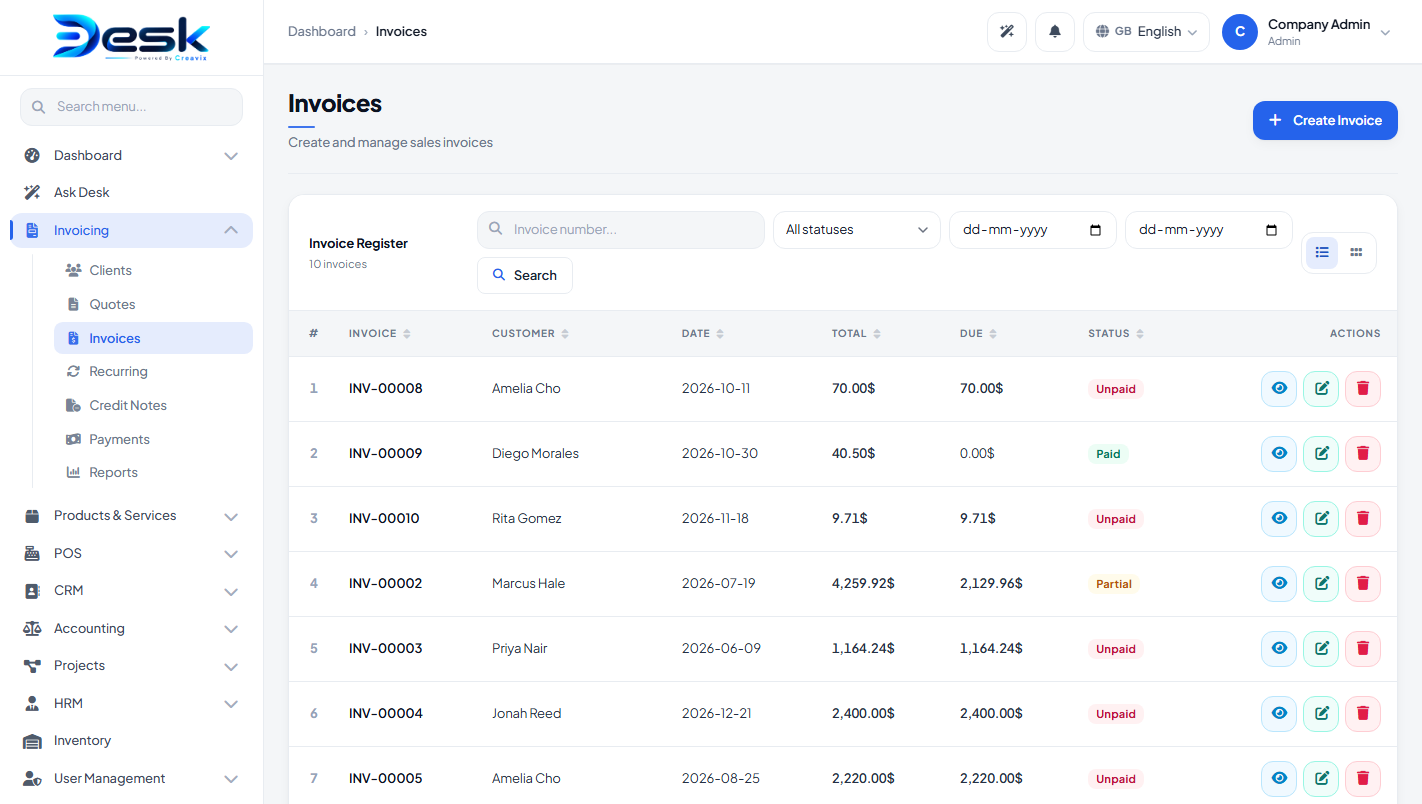
- Invoicing → Invoices: Master invoice ledger managing all draft, sent, paid, and overdue bills.
- Invoicing → Recurring: Automated recurring invoice templates for subscription retainers.
- Invoicing → Credit Notes: Official credit adjustments applied against invoices.
- Invoicing → Payments: Chronological ledger of all payments collected on invoices.
- Invoicing → Reports: Sales reports, payments collected by date range, and client revenue audits.
3. Client Management
Clients are the legal entities or individuals billed for your services:
| Client Attribute | Purpose & Usage |
|---|---|
| Primary Contact & Company | Individual contact name, registered legal entity name, email address, and phone number. |
| Tax Identification Number | VAT, GST, TIN, or Tax ID displayed on official PDF invoice headers. |
| Billing & Shipping Addresses | Complete postal address including street, city, state/province, postal code, and country. |
| Opening Balance | Historical pre-existing balance owed by the client upon onboarding. |
4. Price Estimates & Quotations
Issue detailed, professional price proposals before commencing billable work:
- Draft Quote: Select the Client, Quote Date, and Expiration Date. Add line items from your Product & Service Catalog or enter custom descriptions, quantities, unit prices, discounts, and applicable tax rates.
- Send Proposal: Email the quotation directly to the client or download a formatted PDF.
- 1-Click Conversion: When the client approves the estimate, open the quote and click Convert to Invoice. The system instantly generates an active invoice retaining identical line items and pricing without re-typing.
5. Invoices & PDF Generation
5.1 Invoice Creation & Line-Item Math
- Invoice Numbering: Automatically sequenced using your configured prefix (e.g.
INV-0001,INV-0002) customizable under Company → Settings. - Line Items: Supports both physical inventory items and professional hourly services. Line-item calculations automatically compute subtotal, compound tax rates (e.g. GST 18%, VAT 20%), and custom discount percentages.
- Terms & Bank Instructions: Pre-fill standard payment terms, wire transfer bank instructions, and notes on the invoice footer.
5.2 Invoice Lifecycle & Statuses
| Status | Meaning & Allowed Operations |
|---|---|
| Draft | Under preparation; editable by staff, not yet sent to the client. |
| Sent | Delivered to client via email or link; awaiting payment. |
| Partially Paid | Partial deposit or installment recorded; remaining balance tracked. |
| Paid | Full invoice amount collected; receipts generated automatically. |
| Overdue | Due date passed with outstanding balance; payment reminders triggered. |
5.3 Public Payment Link
Every invoice includes a secure public link. Clients can open their invoice in any browser, review line items, download a PDF copy, and pay immediately using PayPal or Stripe (Credit Card / Apple Pay) if configured by your company.
6. Recurring Invoices (Retainers)
Automate recurring retainer billing for managed services, software maintenance, or rental fees:
- Frequency: Configure weekly, monthly, quarterly, or annual billing cycles.
- Execution Schedule: Set start date, end date, and execution day of the month.
- Automated Cron Execution: When the server cron runs (
php artisan schedule:run), Creavix Desk automatically generates new invoices for due retainers and sends email notifications to clients.
7. Recording Payments & Receipts
Record customer settlements against invoices with flexible payment allocation:
- Multi-Tender Support: Accept Cash, Bank Wire, Credit Card, PayPal, Stripe, or Cheque.
- Partial Payments: Clients can pay in milestones; the system computes remaining balance automatically.
- Instant Receipt: Once recorded, an official payment receipt is generated with payment reference number and timestamp.
8. Credit Notes
If an invoice was overbilled or a customer returned merchandise, issue a Credit Note linked to the original invoice. This deducts the credited balance from the client's Accounts Receivable ledger without deleting or corrupting historical invoices.
© Creavix Desk