Home / Modules / POS
Point of sale
POS
A till on the same catalog and billing as the rest of the desk. A sale creates a paid invoice, drops stock, and can post accounting journals when Accounting is on.
Turn the module on
Add-ons Manager: Active. Plan includes POS. Billing and Products & inventory must also be active — checkout uses those modules.
Give the role pos.view (and pos.sell for the till). Cashier includes sell, orders, and returns after install.
Sidebar: Dashboard → POS Dashboard (today’s sales, 14-day chart, counters, top products). Under POS: Add POS, POS Orders, POS Returns, Print Barcode, Billing Counters, Discounts, Reports (sales, product, customer).
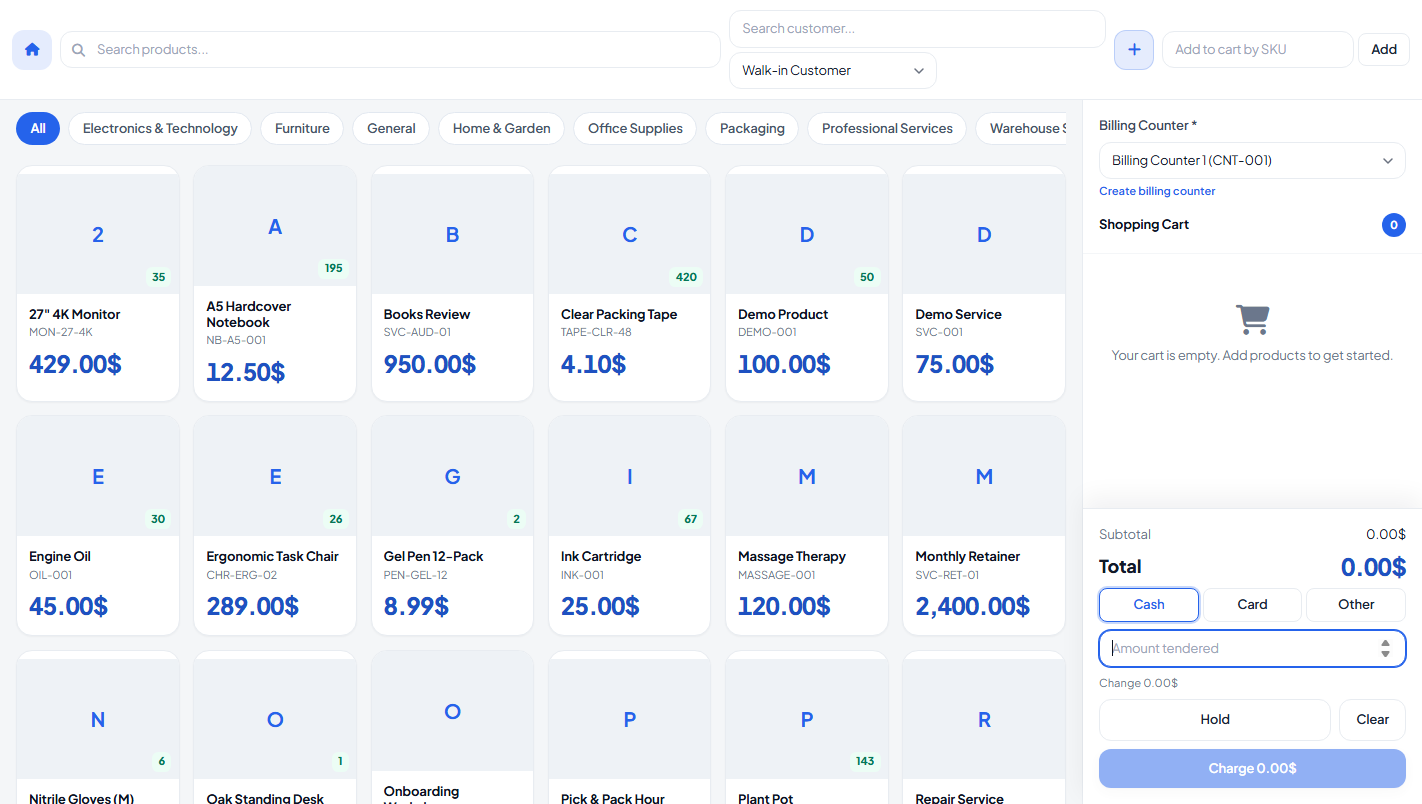
Day-to-day flow
- Create a billing counter (register) and open the shift if you want an opened-at time. The first sale also opens an active counter.
- Open Add POS. Pick the counter and a customer (Walk-in Customer is created automatically).
- Search, filter by category, or type a SKU / barcode and press Enter. Click a card to add it to the cart.
- Choose Cash / Card / Other. For cash, enter amount tendered. Charge. A receipt window opens. Stock falls for tracked goods.
- Find the sale under POS Orders. Open the billing invoice from there if you need print / email / journals.
- To reverse a line, POS Returns → pick the order → quantities. Stock comes back. A credit note is created on the original invoice.
Billing counters
Name, code (for example CNT-001), active, notes. Open / close shift. Cards show all-time orders and sales, plus today’s discount, tax, returns, sales, and estimated profit (sale minus catalog purchase price).
A counter with orders cannot be deleted. Set it inactive instead.
There is no warehouse picker. Quantity on each product card is products.stock_quantity from Products & inventory.
Discounts
Percent or fixed. Apply to the whole cart, or to one product (shows a red badge on the till). Optional start / end dates. Only active discounts in range apply, and the server recalculates them at charge so the cart cannot fake a price.
Print barcode
Uses the product barcode, or SKU if barcode is empty. Select items, copies per item, print labels (JsBarcode, CODE128). Scan that code in Add to cart by SKU.
Reports
| Report | What it shows |
|---|---|
| Sales | Orders, tender, totals, discounts, tax, returns, net. Filter by counter. CSV. |
| Product | Qty sold / returned, sales, estimated profit. CSV. |
| Customer | Walk-in and named customers, order count and sales. CSV. |
| Counter | Register totals for the period. CSV. |
POS Dashboard: today’s sales, orders, profit, net after returns, recent orders, open counters, low-stock catalog items.
Hold cart
Hold stores the cart in this browser only (not a server ticket). Clear empties it. A refresh keeps the held cart.
© Creavix Desk